SupplyTab simplifies the friction of everyday recurring restaurant wholesale orders.
Instead of relying on fragmented chat messages, SMS, or handwritten notes, suppliers and buyers exchange catalog items,
structured units, and confirmed quantities directly within an intuitive mobile interface.
💡
Core Operating Principle: Completely Free MVP & Non-Payment Transmission
SupplyTab does not process credit cards or financial payments. The app transmits exact product quantities and notes.
Settlement, monthly billing, or bank transfers continue under your existing merchant terms.
There are no app fees, setup costs, commission charges, subscriptions, or advertisements.
Platform Availability
Android (Google Play submission verified) · iOS (review preparation in progress) · Web preview
Target Users
Restaurants, cafes, bakeries (Buyers) & Foodservice ingredient distributors (Suppliers)
Key Strengths
Automated zone order routing, 1-tap yesterday reorder, supplemental order separation, offline draft recovery
📌
Prerequisite Rule for Order Routing:
Before a buyer can submit an order, the supplier must have: ① at least one active product,
② a defined delivery zone with an assigned contact, and ③ assigned that zone to the connected buyer.
If no zone is assigned, the buyer receives a 409 error when attempting to submit orders.
Create Supplier Account & Business Profile
Screen Path
Launch App → Create account
Role Selection
Select Supplier radio option
Inputs
Email, Password (10+ chars), Name, Business name, Region, Country code, Time zone
Important
Business owners creating a new supplier leave 'Company join code' blank. (Employees use join codes provided by the admin)
Supplier Home Dashboard & Key Metrics
Screen Name
Seller Home (⌂ Seller Home)
Your primary operational hub showing incoming daily volume and quick navigation shortcuts.
- Today's Orders Card: Total incoming orders today, broken down into 'awaiting' and 'confirmed' counts
- Navigation Shortcuts: Quick access cards for ↔ Partners, ▤ Product list, and ◎ Zones
- AI Bulk Import Banner: One-tap access to 'Register products from photos'
- Orders by Buyer: Breakdown of connected buyers, their assigned zones, and pending order counts
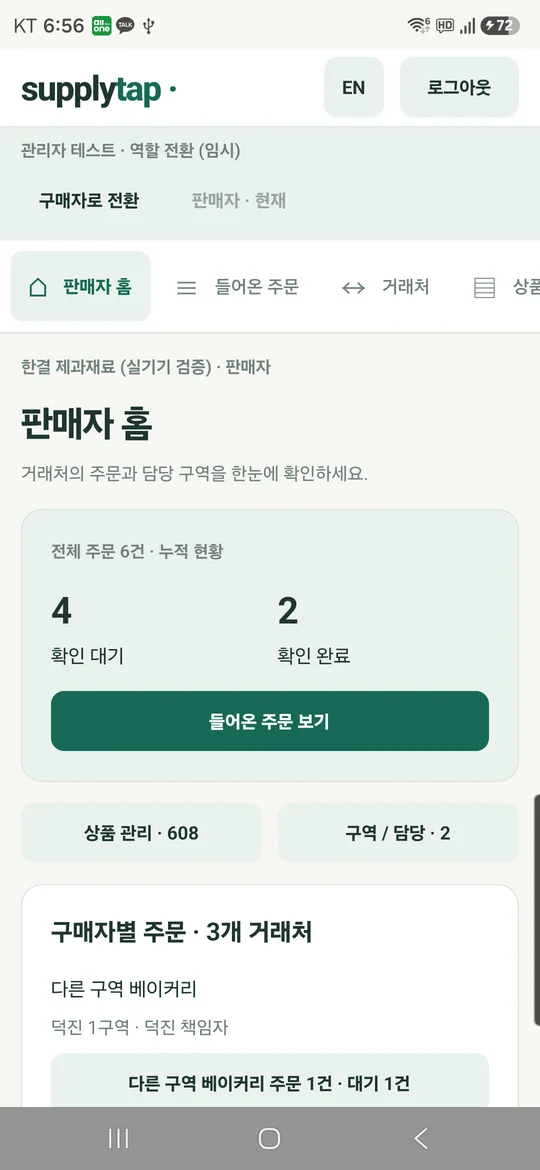
Actual Supplier Home on Android Device
Register Products & Manage Stock Availability
Screen Name
Products (▤ Products)
Build your ordering catalog with specifications, packaging units, and category filters.
- Manual Entry: Tap Register manually → enter Product name (required), Specification (e.g. 10kg sack), Unit (e.g. box, kg, ea), Category chip → Save
- AI Document Capture: Tap AI product document capture for paper invoice scanning (Section F)
- Availability Toggles: Mark items as Mark sold out, Discontinue, or Resume sales in real time
- Safe Deletion: Deleting a product removes it from new orders while fully preserving past transaction history in the database.
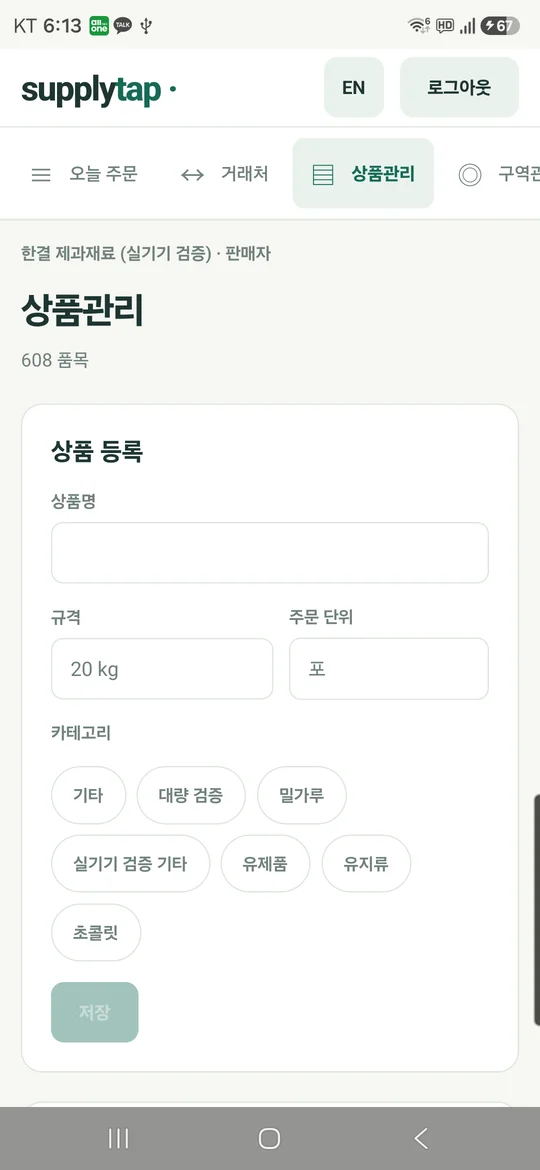
Catalog & Stock Status Controls
Create Delivery Zones & Assign Staff
Screen Name
Zones (◎ Zones) — Admin Only
Define geographic routes (e.g., Downtown, North County) and assign employees to receive notifications.
- Add Zone: Type the zone name in the input field and tap Add zone
- Assign Staff: Tap Choose assignee on the zone card and pick an employee registered under your supplier team
- Fallback Behavior: If a zone is 'Unassigned', order notifications route directly to the Company Administrator.
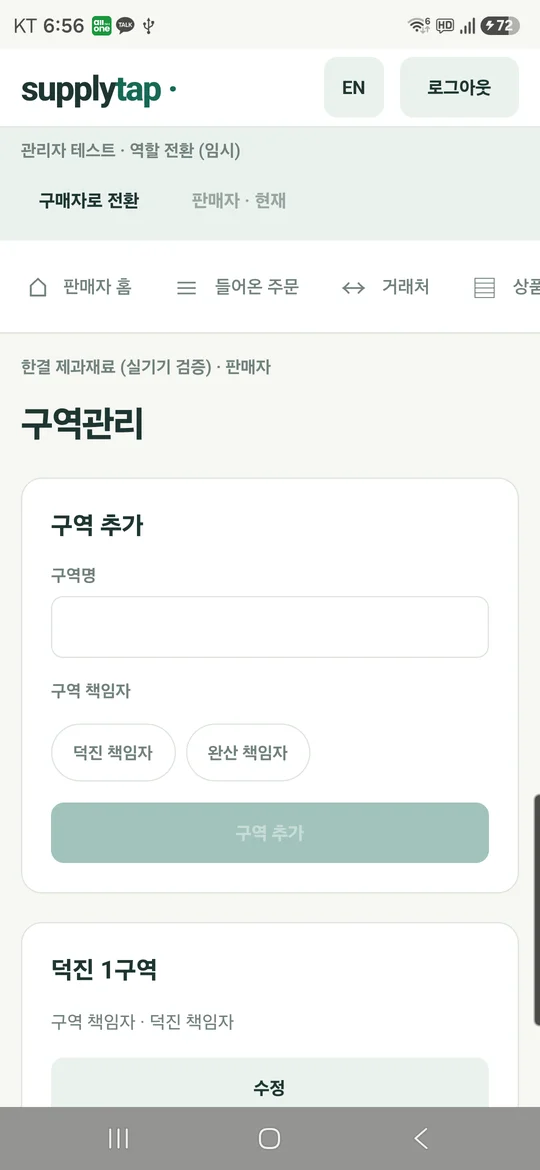
Zone Setup & Staff Assignment
Search & Invite Buyer Businesses
Screen Name
Connections (↔ Connections)
Connect your business with restaurants and retail buyers across the platform.
- Search Buyers: Type at least 2 characters of the buyer's business name and tap Search
- Employee Inviting: Staff members select their assigned zone before tapping Invite. Once accepted, the buyer connects to that zone automatically.
- Admin Inviting: Administrators can invite directly and assign the appropriate zone after the buyer accepts.
- Status: The button updates to Invited and displays under 'Awaiting acceptance'.
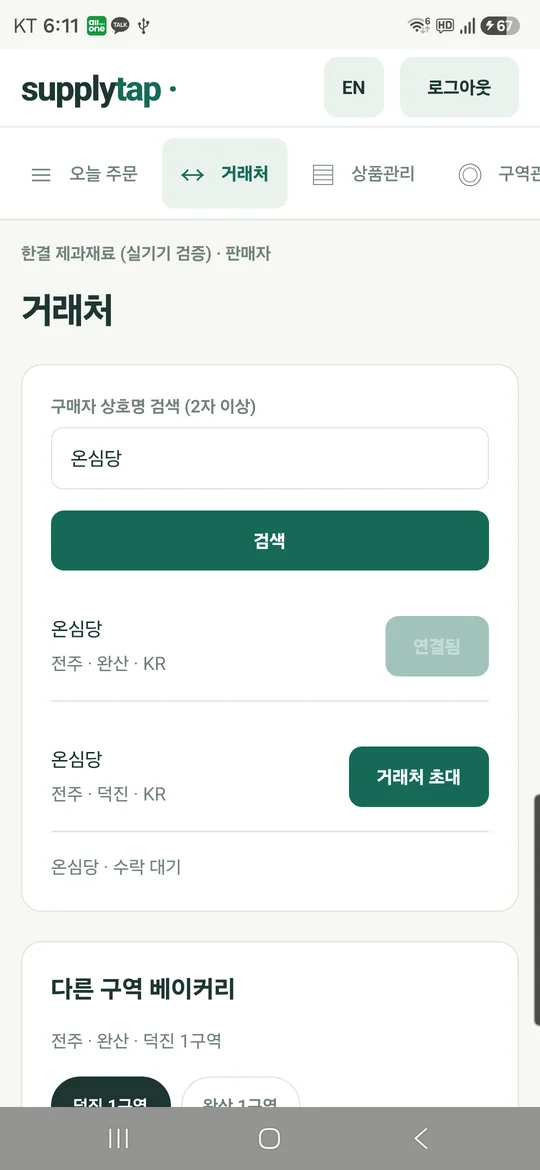
Buyer Search & Partnership Invitation
Receive & Acknowledge Incoming Orders
Screen Name
Incoming Orders (≡ Today’s orders)
When a buyer sends an order, assigned zone managers receive real-time notifications.
- Review Order: Check buyer name, delivery notes, product items, and quantities
- Confirm: Tap Confirm order to mark it confirmed
- Notification: The buyer immediately receives a notification confirming receipt
- Closing Supplemental Window: Once confirmed, the buyer's ability to submit additional add-on items for this specific order closes.
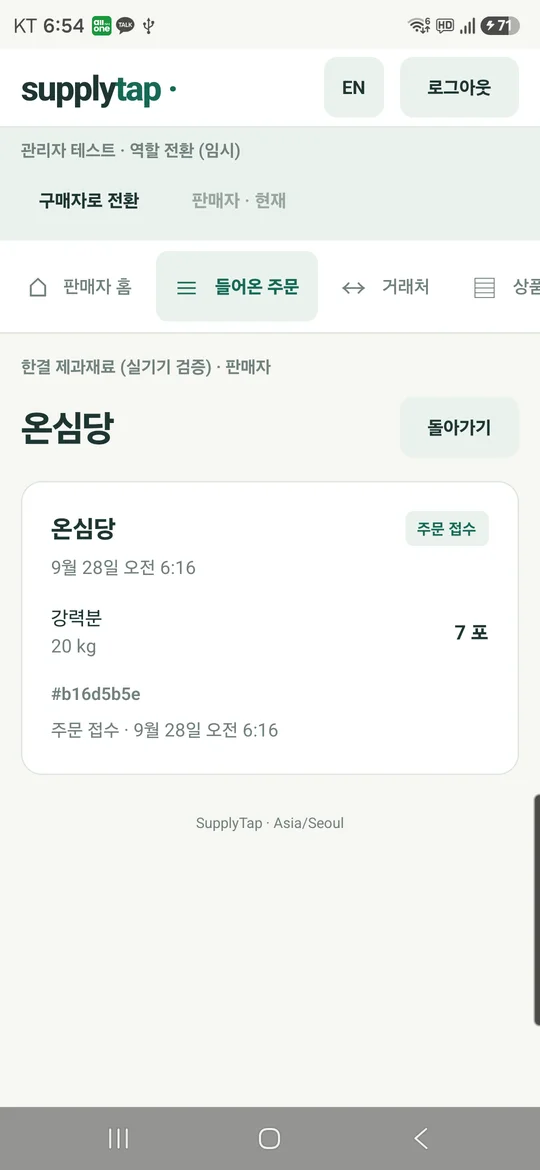
Incoming Orders List & Confirmation
ℹ️
Streamlined Buyer Experience:
Buyers have no complex zone configurations or staff administration.
Once you accept an invitation and your supplier assigns a zone, your supplier's live catalog is ready for ordering.
Create Buyer Account
Screen Path
App Launch → Create account
Role
Select Buyer
Inputs
Email, Password (10+ characters), Your name, Business name (restaurant/cafe), Region, Country, Time zone
Accept Partnership & Verify Zone Status
Screen Name
Connections (↔ Connections)
Invitations sent from your suppliers appear under 'Invitations'.
- Accept: Review the supplier's name and tap Accept
- Pending Zone: If the supplier hasn't assigned your zone yet, you will see "Connected · Waiting for your supplier to assign a zone".
- Ready to Order: Once the supplier assigns your route, it updates to "Connected" with your zone and contact name.
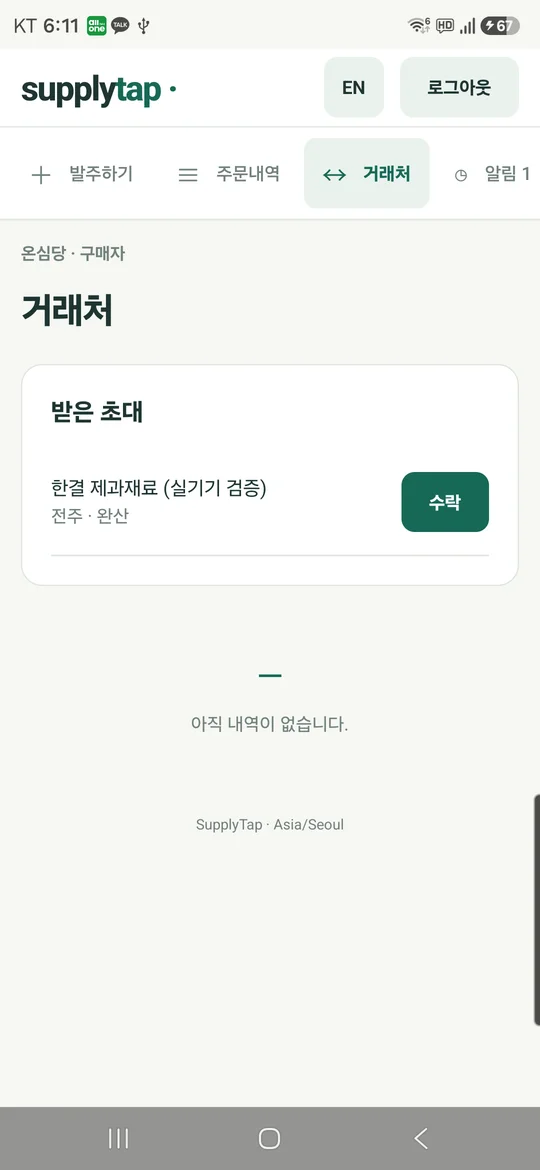
Incoming Supplier Invitations & Acceptance
Select Items & Quantities
Screen Name
Place Order (Place order)
Browse catalog items, filter by category chips, and adjust quantities.
- Supplier Selector: Tap the top bar to switch between multiple connected suppliers
- Stepper: Tap + or − or enter decimal numbers directly (up to 3 decimal places)
- Floating Summary Bar: The bottom bar displays Current order · N items with real-time totals.
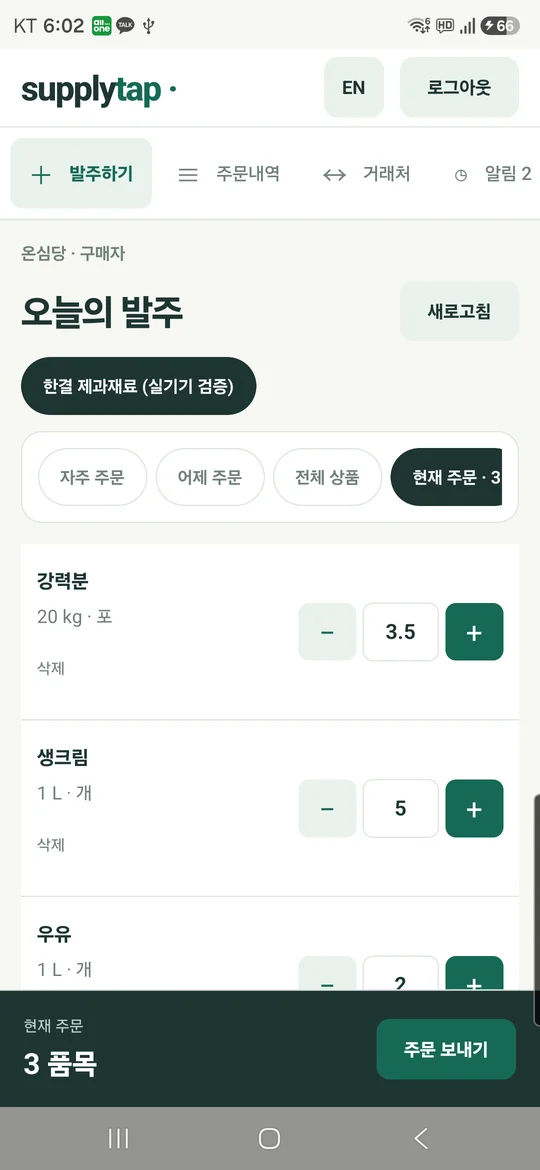
Catalog Selection & Stepper Controls
1-Tap Reorders: Yesterday & Frequently Ordered
Screen Name
Place Order → Yesterday / Frequently ordered
Eliminate re-entering the same shopping list every morning.
- Load Yesterday: Tap Load yesterday’s order to duplicate yesterday's exact order quantities into today's cart
- Unavailable Protection: Discontinued or sold-out items are safely filtered out with "Unavailable products were excluded".
- Frequently Ordered: Your most reordered essentials are sorted at the top for instant quantity selection.
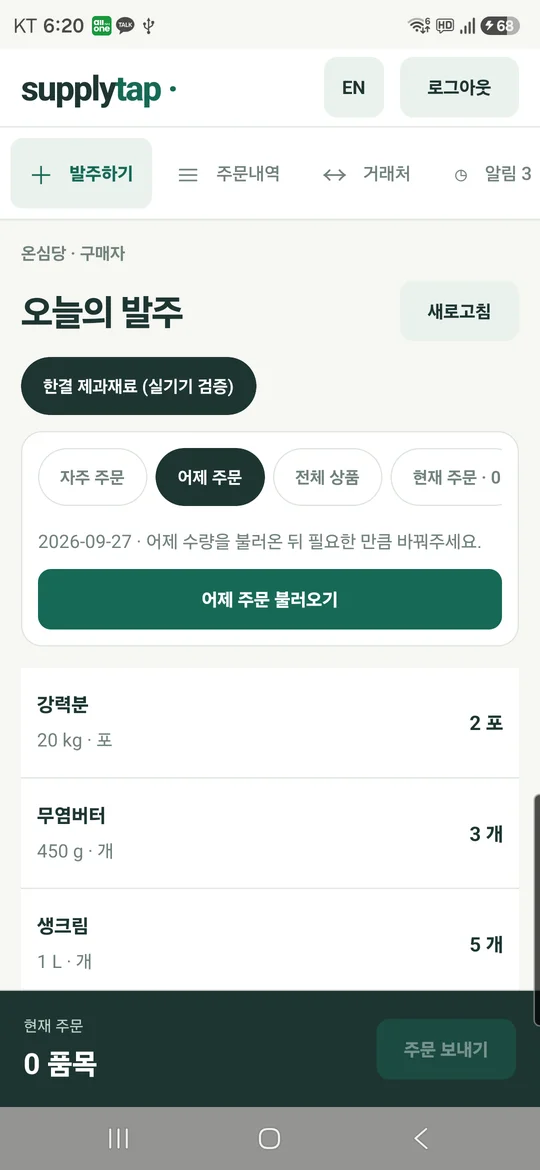
Yesterday's Order Auto-Population
Review, Add Notes, and Submit
Screen Name
Current Order (Current order)
- Notes: Add optional instructions (e.g. "Deliver before 8:00 AM") in Request (optional)
- Submit: Tap Send order for immediate server transmission
- Network Recovery: If your network drops, the button changes to Retry this order. The same UUID idempotency key ensures zero duplicate billing or order creation.
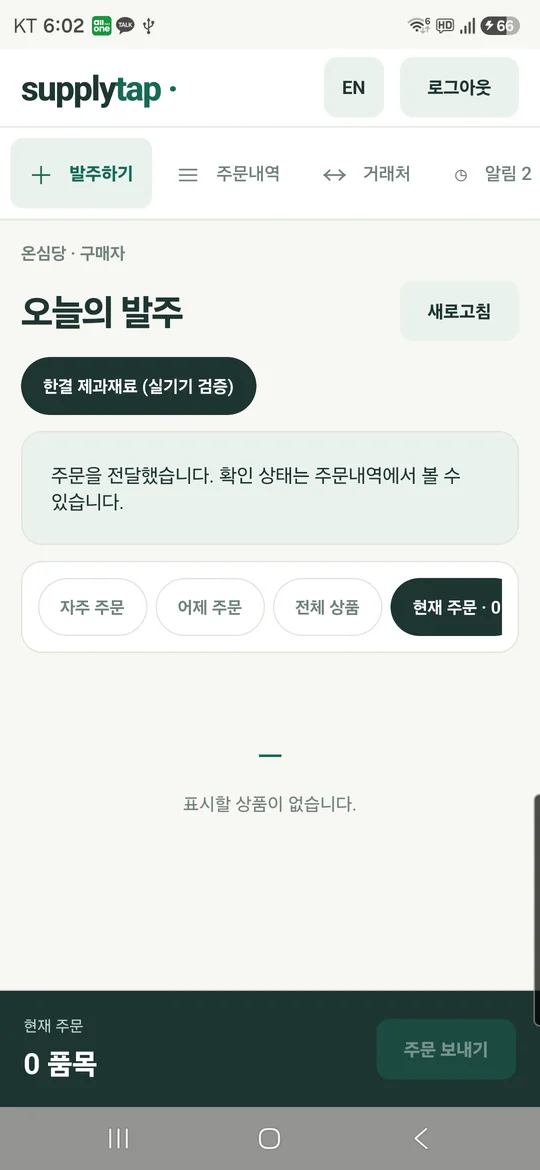
Order Sent Confirmation Screen
1. Received (접수)
Order submitted by the buyer. Supplemental orders can still be attached while in this state.
2. Confirmed (확인됨)
Acknowledged by the supplier or assigned zone manager. Supplemental ordering window closes.
Forgot an item? Add items without voiding the original order
When you remember forgotten items after submitting, you can send an additional order without canceling the first one.
- Separation: Additional orders are linked via
order_additions, preserving original quantities independently.
- Window: Available exclusively while the original order is in Received status.
- Audit Trail: Both supplier and buyer see the original order and additions side by side, preventing packing errors.
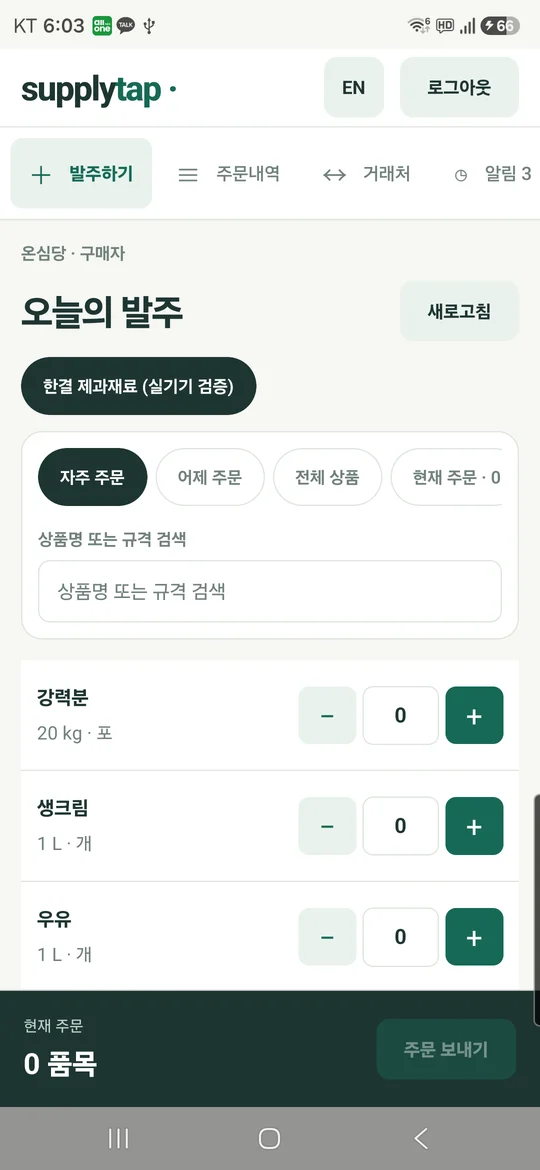
Confirmed Status & History Details
Adding Employees to Your Supplier Organization
- Locate Code: The company admin accesses Company Join Code inside the team settings panel.
- Share Securely: Provide the 32-character code to employees.
- Employee Sign-up: The employee selects 'Supplier' and inputs the exact company name and join code.
- Instant Linking: The employee is automatically enrolled into your supplier organization without manual approvals.
📷
Capture Best Practices:
• Photograph documents one page at a time, holding the camera parallel to the paper so text is crisp.
• Take up to 20 photos per review draft.
• Server operates with a daily safety budget of 100 external AI requests. If exceeded, drafts are preserved for later processing.
Capture → AI Extraction → Inspector Magnifier → Bulk Save
- 1. Document Capture: Tap Register products from photos to open the document scanner.
- 2. AI Extraction: Tap Analyze. The AI engine identifies product titles, sizes, and units.
- 3. Filter & Inspect: Filter by Auto-matched, New candidates, or Needs review. Use
SourceMagnifier to zoom directly into the original image.
- 4. Commit: Choose a category and tap Import reviewed list to populate your catalog.
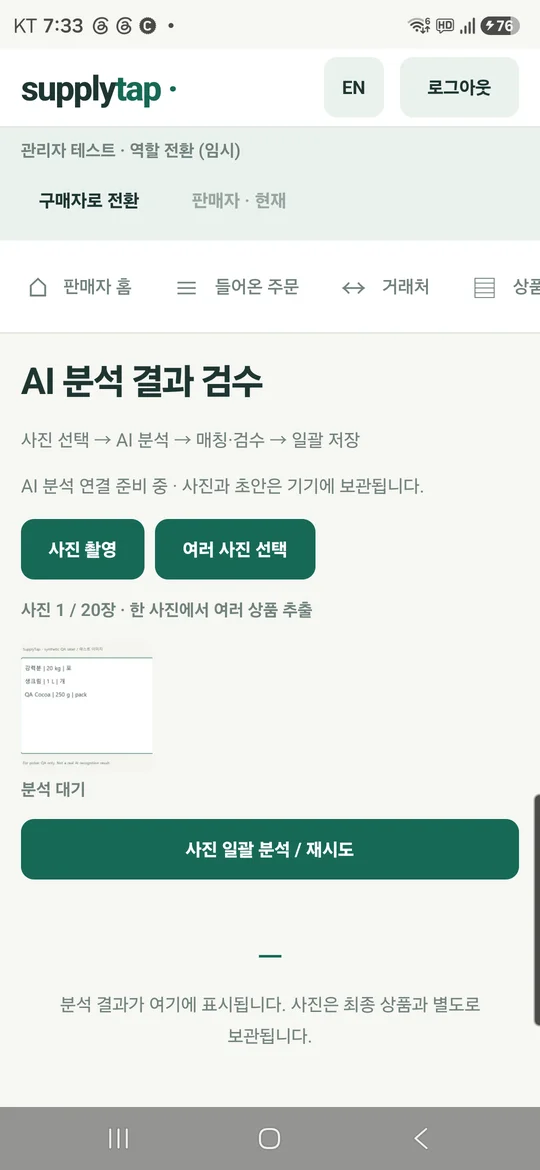
AI Candidate Matching & Review Screen
Q1. What is the fee or subscription cost for SupplyTab?
▼
SupplyTab is 100% free. There are no app download fees, per-order transaction fees, monthly subscriptions, or advertisements.
Q2. Does the app process payments or credit card charges?
▼
No. SupplyTab is a B2B order transmission utility. Billing, bank wire transfers, and commercial tax invoices continue through your established business payment arrangements.
Q3. Is SupplyTab available on Apple iOS?
▼
The Android release candidate has been verified and submitted for Google Play review. iOS technical handoff and App Store review preparations are actively underway.
Q4. Why does a buyer see an error when submitting an order?
▼
Usually, this occurs because the supplier has not yet assigned a delivery zone to that buyer connection, or the assigned zone has no active staff. The supplier admin simply needs to assign a zone under Connections.
409 ZONE_REQUIRED
"Your supplier must assign a zone first"
Cause: The buyer accepted the invitation, but the supplier hasn't assigned a delivery zone yet.
Remedy: The supplier admin must navigate to ↔ Connections and tap a zone chip for that buyer.
409 SELLER_UNAVAILABLE
"Seller account unavailable"
Cause: The assigned zone has no employee, and the supplier has no active company administrator account.
Remedy: A supplier employee must claim admin rights via Become administrator or assign staff to the zone.
400 PRODUCT_UNAVAILABLE
"A product is unavailable"
Cause: An item in the cart was just marked sold-out or discontinued by the supplier.
Remedy: Refresh the catalog, adjust the unavailable item's quantity to 0, and re-submit.
NETWORK / UNCERTAIN
"Delivery could not be verified"
Cause: Network connection dropped mid-transit before receiving the server ACK.
Remedy: Tap Retry this order. The built-in UUID idempotency key prevents duplicate orders.
🔒
Account Deletion & Data Privacy:
To request account deletion, visit the
Account Deletion Request Page and re-enter your password.
Personal identifying credentials will be anonymized while historical B2B order records remain securely archived.
Customer Support
For technical issues or enterprise setup inquiries, contact Onsimdang AI Support:
• Email: ceo@onsimdang.com (or 4wd_guitar@naver.com)
• Tel: +82-70-8805-9096 (Weekdays 09:00 ~ 18:00 KST)